Create and print a MAP
When you written two or more topics you are ready for creating a MAP where you include the topics you need.
-
In the Navigate panel, select the structure called Users and then the folder with your name.
-
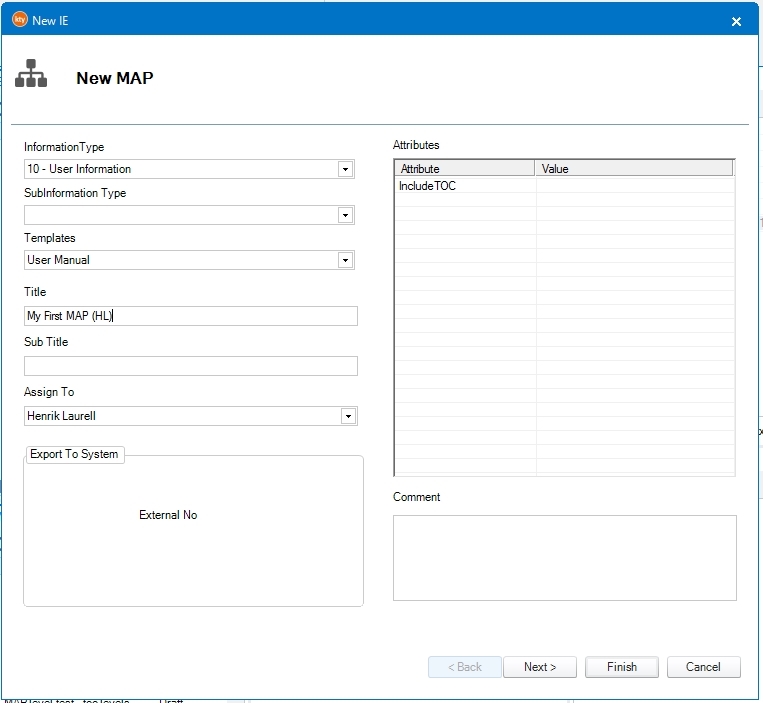
Right-click the folder and select New IE and then MAP.
-
-
Information type: select "User Information"
-
Sub Information type: <leave this field empty>
-
Template: select "User Manual"
-
Title: 'My first MAP (Your Initial)'
Leave the rest fields blank and click OK.
-
-
Select your MAP in the IE list and check it out. The map editor opens. In the folder list, select the folder named "New folder".
-
Using your mouse, drag and drop your topics named 'My first topic' and 'My second topic' from Kentucky into the map editor topic list.
-
Select File and then "Save and Exit". The map editor closes. In Kentucky check in your MAP again.
-
With your map still selected in the IE list, select Print in the Ribbon (top) menu. Select stylesheet and language. Click Publish. Your new manual should show up in front of you in a few seconds.
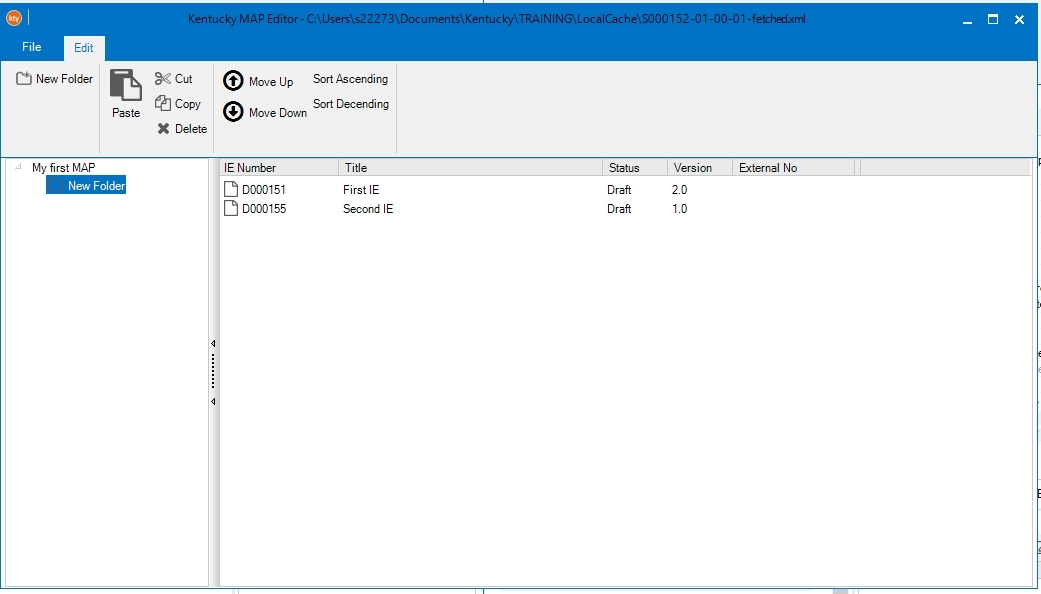
Did your topic not show in the pdf? Did you put them in the "New Folder" folder in the map editor? First (root) level is only for front, back, juridics and similar pages, not for standard topics. Topics must be placed in a folder. Check and re-do again, if necessary.